Hosting on Azure
The easiest way to get started with Fider is to use our Cloud Instance - no installation, no worrying about updates, setup, configuration, or maintenance. And there's a free plan, so you can get started at no cost.
Prerequisites
An Azure subscription
It's free to start, but will require a variable monthly payment afterwards.
E-mail Sender
Fider cannot start without an email provider. You can choose between an SMTP Server, a Mailgun account or Amazon SES.
Deploying your instance
Step 1: Create a new PostgreSQL Database
Using Azure portal, create a new Azure Database for PostgreSQL flexible server using the Official Guide. Fider requires PostgreSQL 12 or later.
The guide above also explains how to configure the firewall so that your App Service can connect, and how to connect with psql. Follow that process and create a database named fider.
CREATE DATABASE fider;
Fider uses the pg_trgm extension, and Azure only lets you install extensions that are on its allow list. Before starting Fider, add PG_TRGM to the azure.extensions server parameter. See how to allow extensions for the steps. Without it, Fider fails to start while running its database migrations.
Alternatively, you can also install PostgreSQL on a Virtual Machine.
Step 2: Create an Azure App Service
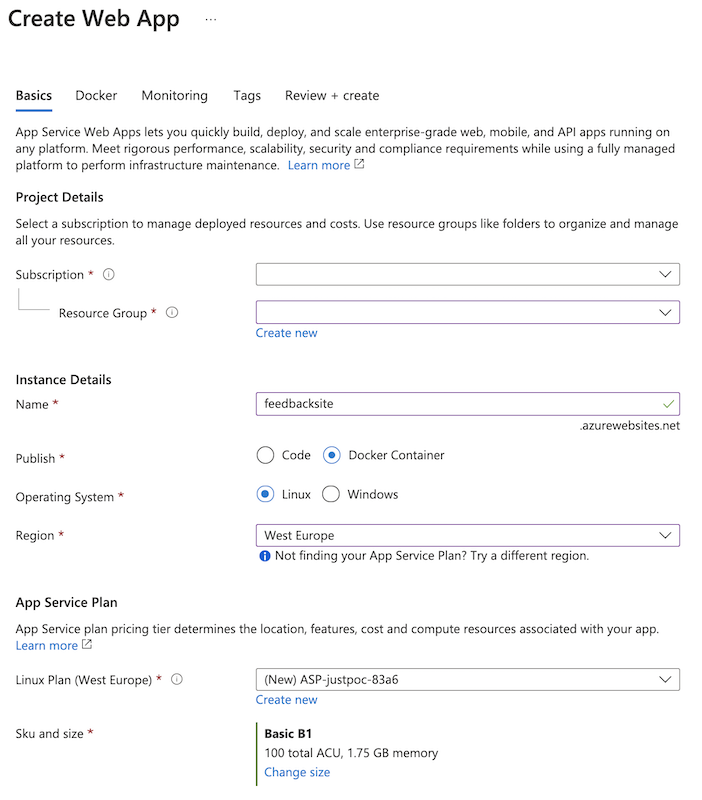
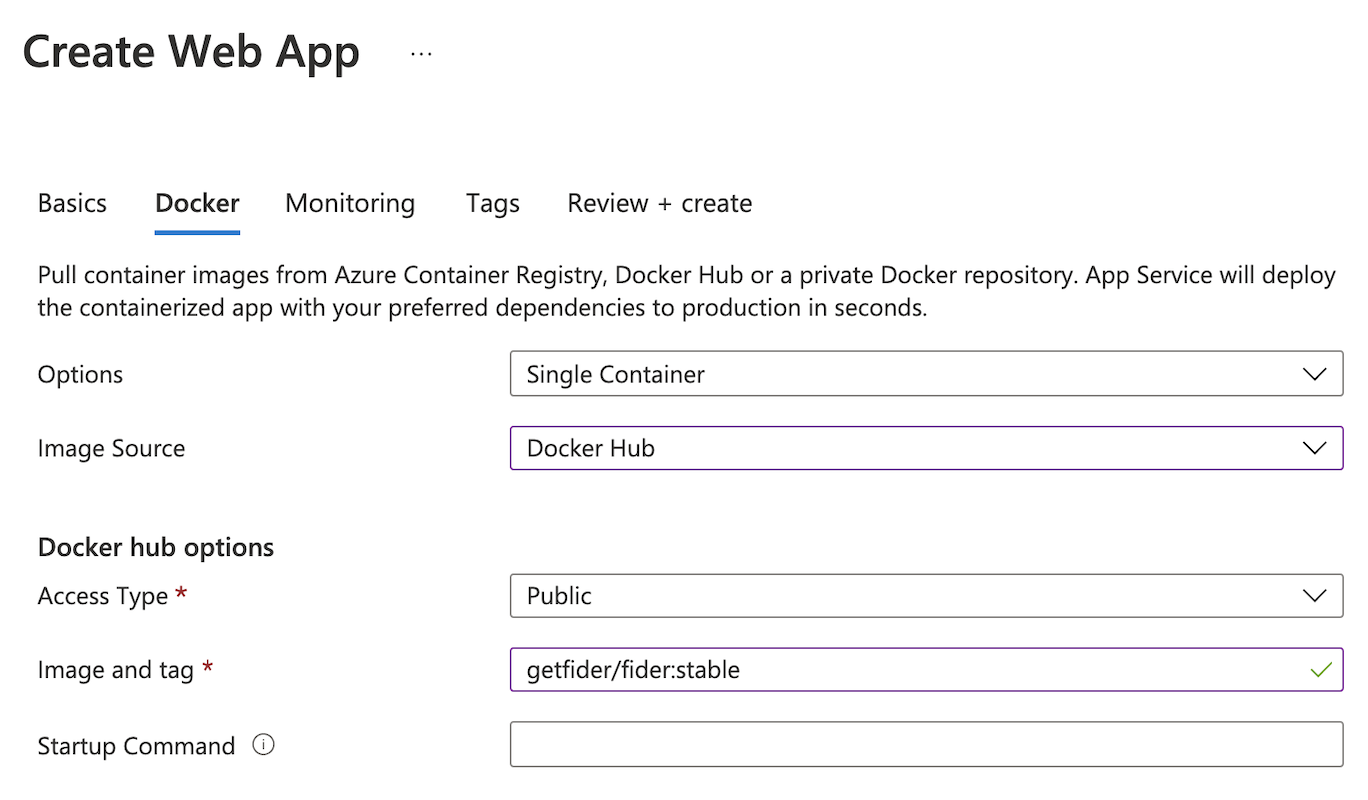
Azure App Service (also known as Azure Web App) is where the actual application will be hosted. Using Azure portal again, search for Azure App Service and create a new instance. Publish it as a container on Linux, using the image getfider/fider:stable from Docker Hub.
We recommend using Linux and Basic B1 at a minimum, but if you're expecting higher traffic, upgrade to a more suitable tier.
Step 3: Configure your App
In your App Service, open the application settings (Environment variables in the current Azure portal, Configuration in older versions) and add the following:
WEBSITES_PORT:3000. This tells App Service which port Fider listens on.DATABASE_URL:postgres://{DB_USERNAME}:{DB_PASSWORD}@{POSTGRES_SERVER}.postgres.database.azure.com:5432/fider?sslmode=requireBASE_URL:https://{your_appname}.azurewebsites.net, or your custom domain if you add one. It must start withhttps://.JWT_SECRET: A secret key used to sign login sessions. Use a long random value, for example from jwtsecrets.com.EMAIL_NOREPLY: Set this variable to a no-reply address associated to your instance.EMAIL_MAILGUN_API: Your Mailgun API key.EMAIL_MAILGUN_DOMAIN: Set this variable to your Mailgun domain.
If your password contains special characters such as @, : or /, URL-encode it in DATABASE_URL.
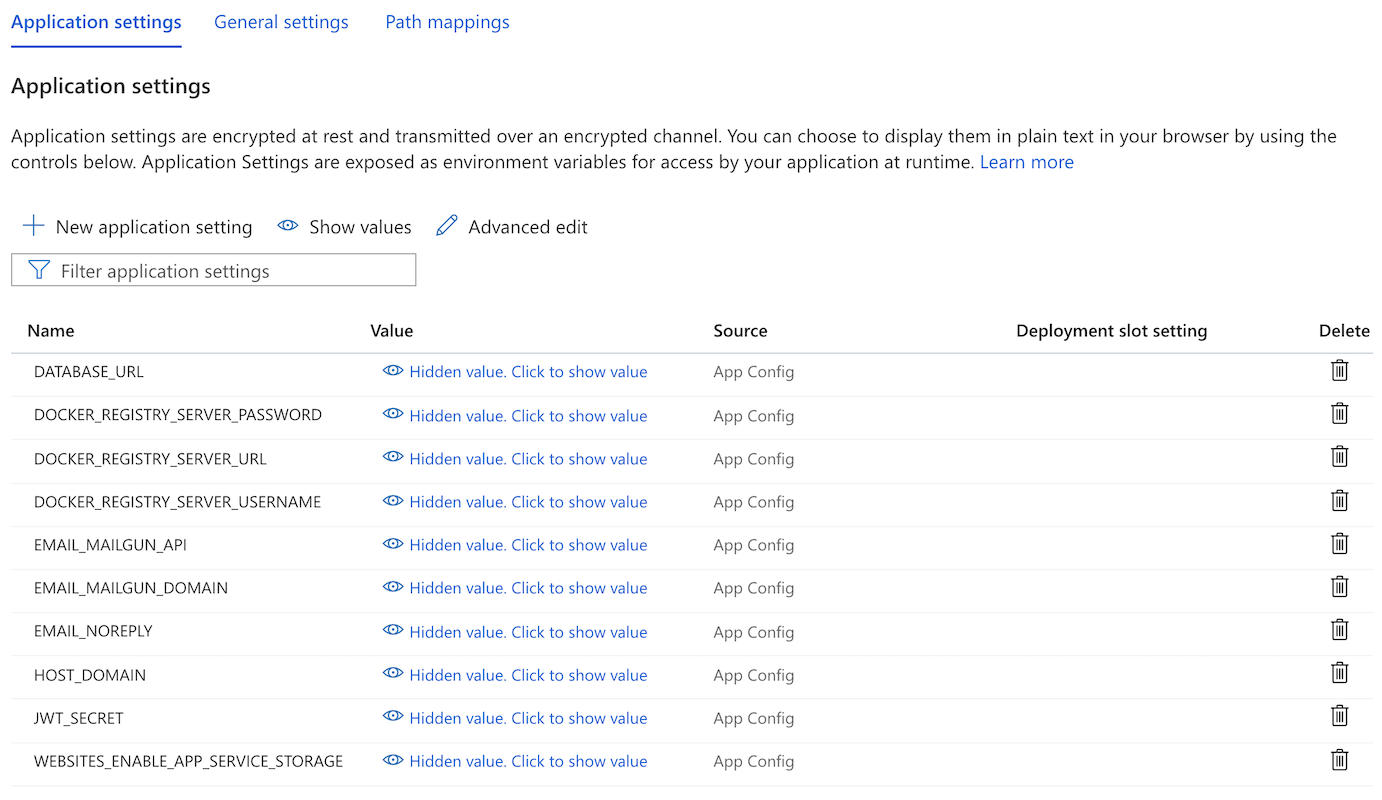
If you're using SMTP, replace the EMAIL_MAILGUN_* variables with EMAIL_SMTP_HOST, EMAIL_SMTP_PORT, EMAIL_SMTP_USERNAME and EMAIL_SMTP_PASSWORD. If you're using Amazon SES, replace them with EMAIL_AWSSES_REGION, EMAIL_AWSSES_ACCESS_KEY_ID and EMAIL_AWSSES_SECRET_ACCESS_KEY.
See the configuration reference for all the environment variables Fider supports.
Save your settings. App Service restarts your app to apply them.
Step 4: That's it!
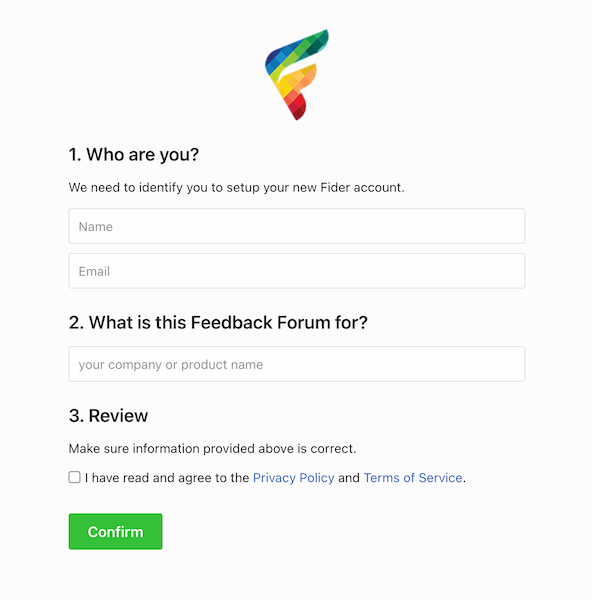
It might take a few seconds for the application to restart and load all the new settings. Once that's done, open https://{your_appname}.azurewebsites.net and you should see the signup screen to create your Administrator account, and you can enjoy your Fider instance and share it with your users.